Best VALORANT Settings (2026): Sensitivity, FPS, and Visibility

VALORANT rewards clean decisions, but it also punishes anything that adds delay. When a peek feels “late,” or a spray feels harder to control than usual, the problem is often settings, not raw aim.
This guide focuses on the best VALORANT performance settings for PC and console. It starts with a solid baseline, then explains how players typically tune it for comfort, role, and hardware—without turning the game into a science project.
- 1. Best VALORANT Settings 2026: Quick Reference
- 2. General Settings
- Recommended Map Settings
- 3. VALORANT Mouse Sensitivity Settings (DPI, Sens, eDPI)
- 4. Best VALORANT Crosshair Settings (Clarity First)
- How to Import a Crosshair in VALORANT
- 5. Best VALORANT Video Settings for Performance
- Video Settings (General)
- Graphics Quality Settings
- 6. How to Reduce Input Lag
- 7. How to Optimize VALORANT Settings for Low-End PC
- Low-end priority checklist
- 8. Best Console Settings (PS5 / Xbox)
- Competitive console tweaks
- 9. How to Lock In the Perfect Setup
- 10. FAQs
Best VALORANT Settings 2026: Quick Reference
These are the “set it first” values. They’re built around the best VALORANT settings for FPS and clarity, then leave room for personal tuning.
| Category | Recommended value (baseline) | Why it helps |
|---|---|---|
| DPI + eDPI | 800 DPI + 0.32–0.40 sens (≈256–320 eDPI) | Controlled aim + consistent flicks |
| Display Mode | Fullscreen | Lowest overhead and most stable |
| Resolution | Native (often 1920×1080) | Best clarity for most setups |
| Multithreaded Rendering | On | Reduces drops in chaotic fights |
| Material / Texture / Detail / UI | Low | Less clutter, better readability |
| VSync | Off | Avoids added input delay |
| Low-latency option | Reflex On (NVIDIA) | Reduces system latency |
If the baseline feels “too fast” or “too slow,” that’s normal. The best settings are the ones that stay consistent across ranked sessions, not the ones that look perfect on paper.
General Settings
General settings are the “quality-of-life” layer. They don’t magically improve aim, but they can make the game easier to read, reduce mental load, and keep information consistent from match to match.
Most of these come down to preference, but competitive players usually aim for two things: a clean HUD and a minimap that’s readable at a glance.
Recommended Map Settings
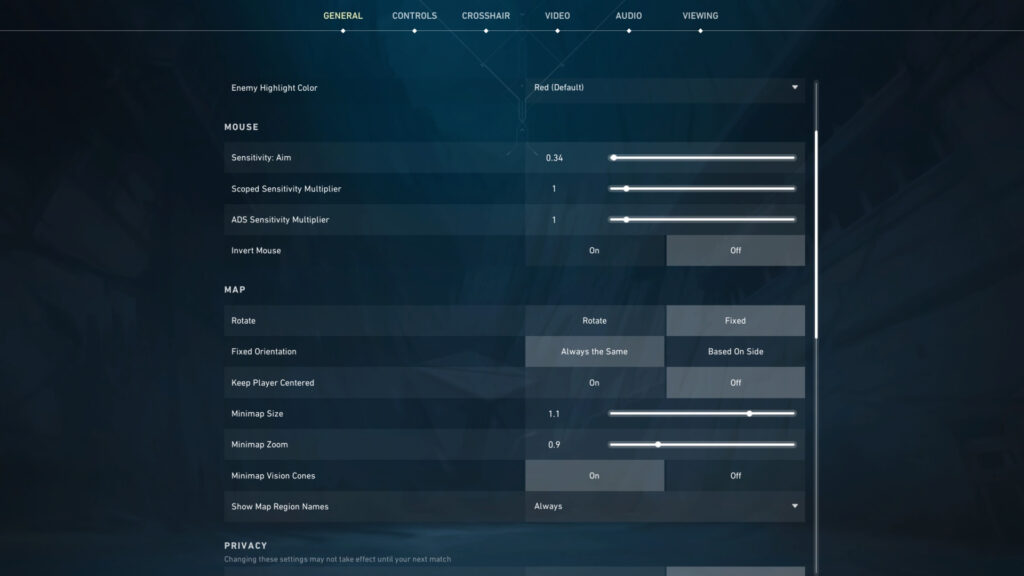
| Setting | Best baseline | Why it’s recommended |
|---|---|---|
| Rotate | Fixed | Faster callouts + consistent mental map under pressure |
| Fixed Orientation | Always the Same | Keeps the map “north-up,” so angles don’t flip mid-round |
| Keep Player Centered | Off | More space visible ahead/around for flanks + rotations |
| Minimap Size | 1.05–1.20 | Big enough to read instantly without dominating the HUD |
| Minimap Zoom | 0.85–1.00 | Balances nearby detail with wider context |
| Minimap Vision Cones | On | Helps read teammate facing/clearing direction quickly |
| Show Map Region Names | Always | Cleaner comms and fewer hesitation moments |
A fixed minimap helps many players build faster habits because the map doesn’t “spin” during quick turns. Some prefer rotation for comfort—either can work—but fixed is the cleaner baseline for consistency.
VALORANT Mouse Sensitivity Settings (DPI, Sens, eDPI)
For the best VALORANT settings for aim, sensitivity is the foundation. Many competitive players settle into a mid-low eDPI range because it supports micro-corrections and reduces overflicking under pressure.
| Setting | Best baseline | Why it’s recommended |
|---|---|---|
| Sensitivity: Aim | Target ~200–320 eDPI (then fine-tune) | A reliable “control-first” lane for most playstyles |
| Scoped Sensitivity Multiplier | 1.0 | Keeps zoom aim consistent and predictable |
| ADS Sensitivity Multiplier | 1.0 | Same muscle memory across ADS-style zooms |
| Invert Mouse | Off | Standard orientation (only change if inverted is natural) |
Note: eDPI = DPI × in-game sensitivity. That’s usually the only number that really matters when comparing setups.
Best VALORANT Crosshair Settings (Clarity First)
A crosshair should be visible on every map, but small enough not to cover heads. In 2026, the most common competitive direction is static crosshairs—no movement/firing error—so the aim point stays predictable.
| Setting | Best baseline | Why it’s recommended |
|---|---|---|
| Use Advanced Options | On | Gives full control over outlines/dot/line behavior |
| Show Spectated Player’s Crosshair | On (optional) | Useful for learning/testing setups mid-game |
| Fade Crosshair With Firing Error | Off | Keeps the crosshair consistent (static feel) |
| Disable Crosshair | Off | Obvious, but it belongs in the checklist |
| Crosshair Color | High-contrast (Cyan / Green / Yellow) | Stands out on both dark and bright areas |
| Outlines | On | Improves readability when the crosshair blends in |
| Outline Opacity | 0.6–0.8 | Visible without becoming “thick” or distracting |
| Outline Thickness | 1 | Crisp edges, minimal visual noise |
| Center Dot | Off (or On if dot-style is preferred) | Off keeps the center clean; dot can help tap timing |
| Center Dot Opacity | 1.0 (if dot is On) | Makes the dot readable instantly |
| Center Dot Thickness | 1–2 (if dot is On) | Small enough not to cover heads at range |
| Override Firing Error Offset With Crosshair Offset | Off | Best for a static crosshair setup |
| Override All Primary Crosshairs With My Primary Crosshair | On | Keeps the same crosshair across profiles for consistency |
If the crosshair disappears in bright areas, outlines usually fix it. If the crosshair feels “busy,” reduce thickness before changing the whole shape.
How to Import a Crosshair in VALORANT
Importing is the fastest way to test a new setup without rebuilding it.
- Open Settings → Crosshair
- Find Crosshair Profile
- Click Import Profile Code
- Paste the code → Import
Best VALORANT Video Settings for Performance
This section covers the best VALORANT graphics settings for competitive play. The goal is stable frame time and clean visibility, not cinematic visuals.
For most players, Fullscreen + native resolution is the best starting point. Many setups run 1920×1080, but “native” matters more than the exact number.
Video Settings (General)
| Setting | Best baseline | Why it’s recommended |
|---|---|---|
| Display Mode | Fullscreen | Most consistent for performance + latency |
| Resolution | Native (drop to 1920×1080 if unstable) | Native is sharpest; 1080p is the safest FPS fallback |
| Monitor | Primary / Gaming display | Ensures correct refresh + lowest friction |
| Aspect Ratio Method | Fill | Cleanest for native 16:9 (no black bars) |
| Limit FPS on Battery | On | Prevents massive dips and heat spikes on laptops |
| Max FPS on Battery | 60 | Stable, cooler, and consistent |
| Limit FPS in Menus | On | Stops the PC from cooking in the menu |
| Max FPS in Menus | 60 | Smooth enough, keeps temps down |
| Limit FPS in Background | On | Avoids background drain |
| Max FPS in Background | 30 | Minimal load while alt-tabbed |
| Limit FPS Always | Off (or cap if needed) | Off keeps it simple; a cap can help stability/temps |
| Max FPS Always | — (if capping: refresh rate − 3) | Example: 141 (144Hz), 162 (165Hz), 177 (180Hz), 237 (240Hz) |
| NVIDIA Reflex Low Latency | On | Solid low-latency default without extra power draw |
If the game looks “too sharp” or noisy, try small changes like anisotropic filtering before raising major quality settings. Competitive clarity comes from stability and contrast, not high textures.
This is where VALORANT’s best settings often win or lose. Many effects look nice, but they also add motion blur-like noise, glow, or dark edges that make targets harder to read.
Graphics Quality Settings
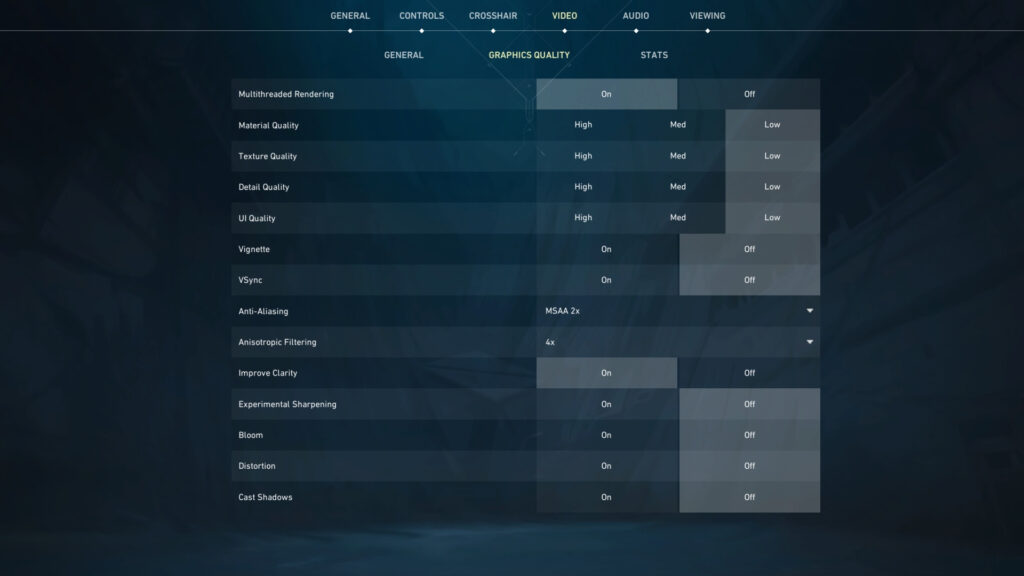
| Setting | Best baseline | Why it’s recommended |
|---|---|---|
| Multithreaded Rendering | On | Helps keep fights stable when abilities stack |
| Material Quality | Low | Reduces clutter and visual noise |
| Texture Quality | Low (Med if plenty of headroom) | Low is safest; Med is fine if FPS stays flat |
| Detail Quality | Low | Cuts distractions (foliage / extra detail) |
| UI Quality | Low | Saves overhead, keeps HUD clean |
| Vignette | Off | Removes edge darkening (visibility win) |
| VSync | Off | Avoids added input delay |
| Anti-Aliasing | MSAA 2× (or None for max FPS) | 2× smooths edges with minimal cost |
| Anisotropic Filtering | 4× | Cleaner texture readability at low cost |
| Improve Clarity | On | Helps targets pop without heavy blur |
| Experimental Sharpening | Off | Can look harsh/“grainy” on some screens |
| Bloom | Off | Removes glow that can hide movement cues |
| Distortion | Off | Less visual warping/noise |
| Cast Shadows | Off | Fewer dark pockets + higher FPS |
How to Reduce Input Lag
Input lag is the “shots feel late” problem. The biggest universal wins are VSync Off, stable frames, and the right low-latency option for the GPU.
- VSync: Off (always, for competitive play)
- Keep FPS stable with low settings and sensible limits
- On NVIDIA systems, enable Reflex for lower system delay
How to Optimize VALORANT Settings for Low-End PC
Low-end optimization is about consistency. A stable 120 FPS can feel better than an unstable 180 that dips during execution.
Low-end priority checklist
- Fullscreen + native resolution
- All quality settings are on Low
- Turn off bloom/distortion/vignette/shadows
- Enable multithreaded rendering (if available)
- Use an FPS cap that the system can hold consistently
If stutter shows up, lower resolution only after the basics are done. Most of the real gains come from cutting visual noise and stabilizing frame time.
Best Console Settings (PS5 / Xbox)
Console players can still tighten responsiveness. The idea is to reduce extra input filters and feedback that slow actions down.
Competitive console tweaks
- Turn off Vibration
- Lower Trigger Deadzones (small steps)
- Disable “comfort” movement options that add delay
- Keep visuals clear over flashy effects, where options exist
Controller tuning is personal. Small deadzone changes can feel huge, so adjust slowly and lock a setting for a few sessions before changing again.
How to Lock In the Perfect Setup
The best approach is boring—and it works. Change one setting, test it, then decide.
- Start with the baseline tables
- Test tracking while strafing (practice area)
- Test flicks to two targets (same distance)
- Play a few games and note consistency
- Adjust only 1–2 settings at a time
If the crosshair consistently trails the target, sensitivity may be too low. If it overshoots, sens may be too high. The goal is repeatable control in stressful rounds.
FAQs
What are the best video settings for FPS?
To maximize FPS, set Material, Texture, Detail, and UI Quality to Low. You should also turn off VSync, Anti-Aliasing, and visual effects like Bloom and Distortion.
Why do pros use low graphics settings?
Pros use low settings to remove visual clutter like foliage and shadows that make enemies harder to see. Lower settings also improve frame rate stability, which is crucial for input responsiveness.
Does VSync cause lag in VALORANT?
Yes, VSync introduces significant input lag by forcing your GPU to wait for the monitor’s refresh cycle. It should always be turned off for competitive play.
Should pro settings be copied in VALORANT?
Copying pro settings can provide a good baseline, but it shouldn’t be treated like a cheat code. Pros build around their mousepad space, grip, and role—so the “best” setup is the one that stays consistent across ranked sessions.