Best Controller Settings for Fortnite (2026)

In Fortnite Chapter 7, the controller can feel either locked in or completely unpredictable. Most “bad aim” moments aren’t random. They usually come from mismatched sensitivity, deadzones that are too high, or an input curve that doesn’t fit the way you want to fight.
This guide gives a clean baseline for the best controller settings for Fortnite, then shows how to tune them for aim, building, and platform differences without falling into endless copy-and-change loops.
- 1. Fortnite Best Controller Settings 2026: Quick List
- 2. Fortnite Controller Settings for Beginners
- 3. Best Fortnite Controller Settings for Aim
- 4. What are Deadzone Settings in Fortnite?
- How to Optimize Controller Deadzones in Fortnite
- 5. Linear vs Exponential Settings for Fortnite Controller
- 6. Fortnite Controller Settings for Better Building
- 7. Xbox vs PS5 vs PC Controller Settings: What Actually Changes
- 8. How to Reduce Input Delay on Fortnite Controller
- Stick Response Delay (settings-side)
- Network Lag (connection-side)
- 9. How to Find Your Perfect Controller Sensitivity in Fortnite
- 10. FAQs
Fortnite Best Controller Settings 2026: Quick List
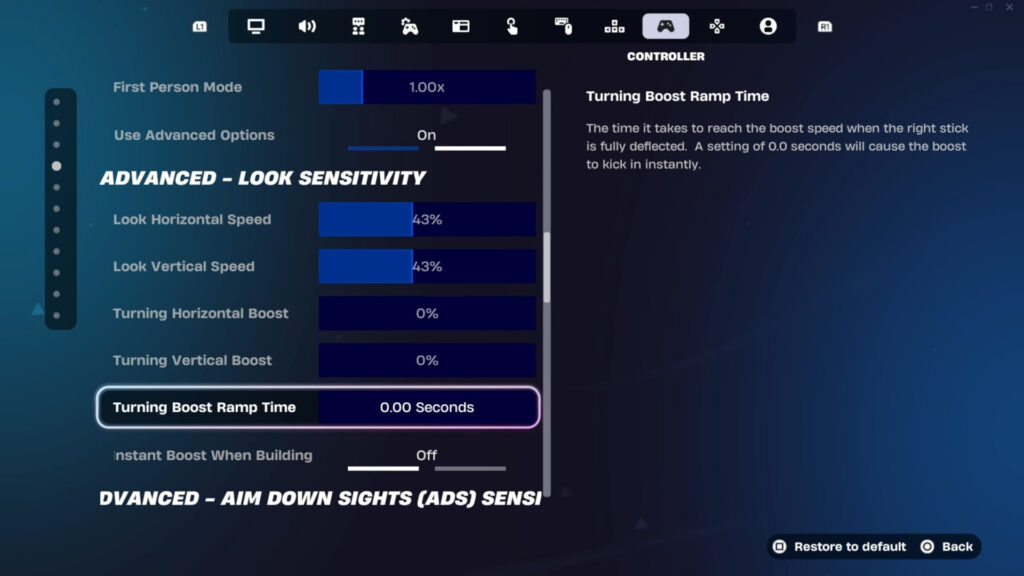
Fortnite uses two “systems” people talk about: the simple 1–10 sliders and the Advanced Options (percent-based speeds). To make your settings as accurate as possible, we recommend enabling Advanced Options.
| Setting (Advanced Options) | Baseline | Notes |
|---|---|---|
| Use Advanced Options | On | Switches to percent-based speeds |
| Look Horizontal / Vertical Speed | 40–60% | Common baseline range |
| ADS Look Horizontal / Vertical Speed | 15–17% | Slower ADS for steadier tracking |
| Turning Boost (H/V) | 0% | Often kept at 0 for consistency. |
| Boost Ramp Time | 0.00s | Removes ramp smoothing |
| Look Dampening Time | 0.00s | No smoothing |
| Look Input Curve | Linear or Exponential | Both are used; see the decision section |
| Aim Assist Strength | 100% | Widely recommended |
| Left / Right Stick Deadzone | 5% (start) | Raise if drift appears |
| Auto-Open Doors | Off | Reduces accidental opens |
| Turbo Building | On | Standard building baseline |
| Confirm Edit On Release | On | Common edit-speed recommendation |
Fortnite Controller Settings for Beginners
For newer players, the goal isn’t “fast.” It’s repeatable and reliable inputs. A lot of frustration comes from copying a pro setup and immediately fighting the controller.
A solid beginner path includes enabling Advanced Options, then starting at around 35% look speeds and gradually increasing until turning feels comfortable. That gradual increase is also a good way to avoid overshooting.
Note: Settings aren’t one-size-fits-all. Even the same player may adjust over time if the controller develops drift.
Best Fortnite Controller Settings for Aim
For the best Fortnite controller settings for aim, two rules usually give the fastest improvement: keep ADS slower than Look, and tune deadzones so drift isn’t fighting every micro-adjustment.
A solid advanced baseline in 2026 is Look 40–60%, ADS 15–17%, and Aim Assist 100%. For simple sliders, a common starting point is Look 6–7 and ADS 4–5, which prioritize control over speed.
Boost is where preferences split. Many players keep boost at 0% for predictable aim, while others add a small boost for faster max-stick turns. If boost ever feels “spiky” or inconsistent, dropping it back to 0% and rebuilding comfort is a clean reset.
Note: Aim Assist is disabled whenever Gyro Aiming is active, so if aim suddenly feels “different” or weaker, it’s worth checking whether gyro got turned on.
What are Deadzone Settings in Fortnite?
Deadzone settings affect the “ignored” area around the stick’s center. If the deadzone setting is higher, the stick must move more before Fortnite registers movement.
Lower deadzones can feel more responsive, but too low can cause stick drift (camera moves without touching the stick). The safest approach is to keep deadzones low, then increase them only if drift occurs.
How to Optimize Controller Deadzones in Fortnite
A clean way to optimize controller deadzones in Fortnite is to start low and increase until the drift stops. That’s recommended because every controller wears differently.
Here’s a quick Deadzone test:
- Start at 5% on both sticks.
- If the camera drifts, raise the stick’s deadzone until it stops.
Linear vs Exponential Settings for Fortnite Controller
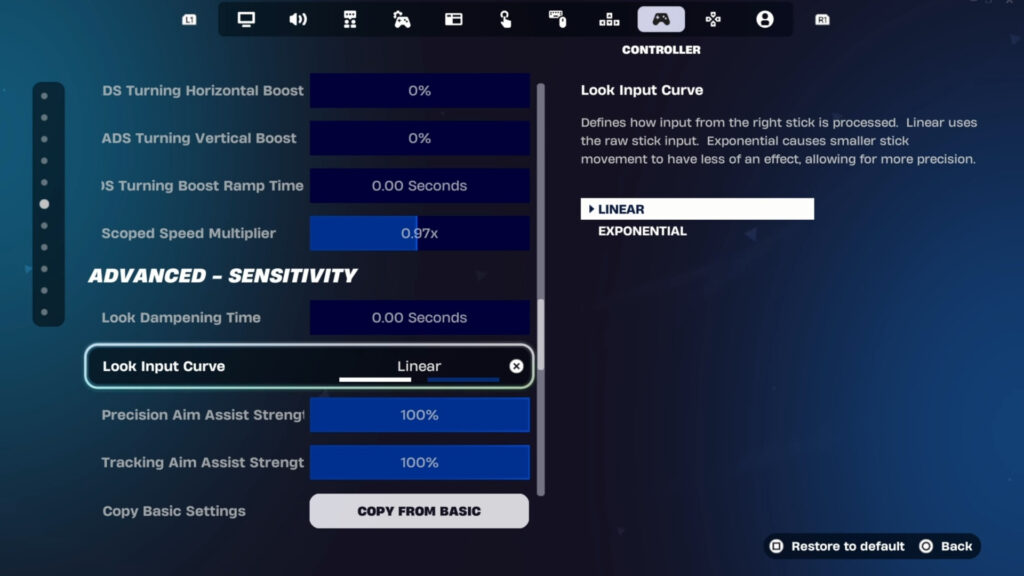
Linear aim can feel more direct and it tends to translate stick movement into camera movement with less ramp, so close-range fights can feel snappier. For shotgun peeks and quick target swaps, Linear can feel more “connected.”
At the same time, Linear can feel too raw for some players if sensitivity or deadzones aren’t dialed in. Small stick touches may move the camera more than expected, making long-range tracking feel shaky. In that case, Exponential can feel steadier at a distance because it’s gentler on tiny inputs.
Here’s a grounded way to pick:
- Choose Linear if close-range shotgun flicks and responsiveness feel best.
- Try Exponential if long-range consistency is your problem and aim feels shaky on Linear.
Fortnite Controller Settings for Better Building
If your goal is to use the best Fortnite controller settings for building, the biggest “feel” wins usually come from enabling advanced sensitivity and keeping the build/edit multipliers reasonable.
We recommend using a Build Mode Sensitivity Multiplier of 2.0–2.2x and an Edit Mode of 2.0–2.3x. Also, settings such as Turbo Building and Confirm Edit On Release will enable a significantly smoother build flow.
Xbox vs PS5 vs PC Controller Settings: What Actually Changes
The Fortnite in-game settings are basically the same baseline across all three. The main differences are hardware features (PS5 triggers), and how the platform handles input (PC can feel sharper, but is more sensitive to system/driver issues).
- Xbox: simplest, most “plug-and-play” feel. Xbox-focused setups often keep Edit Mode Aim Assist enabled because it can make editing feel more controllable.
- PS5: same baseline, but if you want a competitive-style setup, turn DualSense trigger resistance off so inputs stay consistent in fights.
- PC (controller): highest “responsiveness potential,” but it’s also where controller feel depends more on FPS, USB/Bluetooth, and drivers—so input lag can come from the system, not Fortnite settings.
How to Reduce Input Delay on Fortnite Controller
Input delay in Fortnite usually gets mixed with two different problems:
- Stick response delay
- Network lag
Stick Response Delay (settings-side)
Lowering deadzones can make movement register sooner, and one guide explicitly frames deadzones as a way to reduce the stick’s delay in registering movement. We recommend keeping boost ramp time at 0.00s.
Network Lag (connection-side)
If the “delay” is actually lag/ping, one source focuses on improving stability by reducing lag and improving performance. That won’t change raw controller mechanics, but it can improve how fights feel online.
How to Find Your Perfect Controller Sensitivity in Fortnite
The most reliable way to find the best Fortnite settings that suit your playstyle is to test changes in a controlled environment, then adjust gradually rather than swapping full configs.
A practical flow that we recommend includes:
- Jump into a Creative map (often with bots)
- Practice aim and movement
- Increase or decrease settings slowly until it feels right
FAQs
How to reduce input delay on Fortnite controller?
To reduce input delay on your Fortnite controller, enable TV/monitor Game Mode (lower processing) and aim for low input-lag display settings—this often makes controls feel more immediate.
How to optimize controller deadzones in Fortnite?
Lower deadzones until drift appears, then bump them up just enough to stop drift—repeat separately for left and right sticks.
How to find your perfect controller sensitivity in Fortnite?
Start from a baseline, run a short tracking + flick test, then change Look or ADS by a tiny amount and retest—repeat until it feels consistent.
How to turn on aim assist on a Fortnite controller?
To turn on aim assist in Fortnite, follow these steps: Settings → Controller Options → Sensitivity → Advanced Options ON → set Aim Assist Strength to the desired value → Apply.