How To Enable WASD Controls In League of Legends

If you’re wondering how to enable WASD controls in League of Legends, you’re certainly not alone. Riot’s new movement option is one of the biggest changes in years, and many players aren’t quite sure where to find it, let alone which modes support it.
This guide walks you through everything related to LoL WASD, from turning it on in the menu to rebinding keys and checking supported queues. We’ll also explain how the system works, how to test it safely, and what to do if the option doesn’t appear.

- 1. What Are WASD Controls In League of Legends?
- 2. How To Enable WASD Controls In League of Legends
- 3. Where To Find WASD Settings In The Menu
- 4. How WASD Movement Works In League of Legends?
- 5. Keybinding Setup For WASD Movement In LoL
- 6. Which Queues Support WASD Controls In League Of Legends?
- 7. WASD vs Traditional Mouse Movement In LoL
- 8. FAQs
What Are WASD Controls In League of Legends?
League of Legends WASD controls let you move your champion with the W, A, S, and D keys instead of right-clicking on the ground. Your keyboard becomes the primary means of movement, while the mouse focuses more on targeting and attacking.
Riot introduced a new optional control scheme to make LoL feel more intuitive for players coming from first-person shooters, MMOs, or action-RPGs, where WASD is the standard input, while still retaining traditional click-to-move controls. WASD arrived in LoL on December 3, 2025, with Patch 25.24.
How To Enable WASD Controls In League of Legends
Before making any changes, ensure that your client is updated to the latest version. Once you’re patched, you can follow these steps to activate WASD in LoL:
- Start a Practice Tool, Custom, or Swiftplay match (not Ranked)
- Press Esc to access Options
- Go to Keybinds
- At the top, switch input from “Mouse (Point & Click)” to “Keyboard (WASD)”
- Save and resume the game to test movement
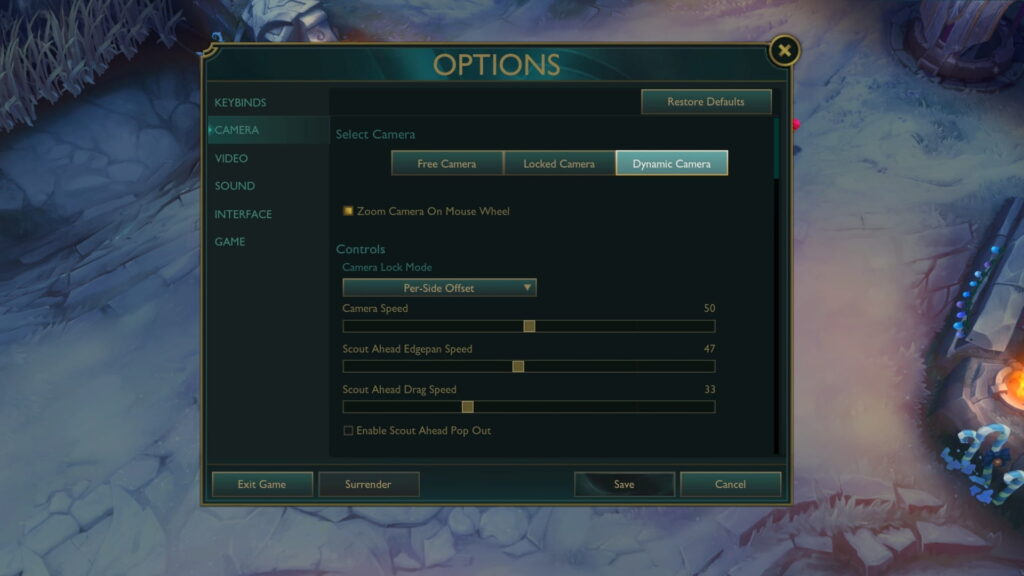
After enabling the feature, you can spend a few minutes tweaking your WASD movement settings in LoL, such as camera speed, Scout Ahead, and any keys that feel awkward. All of these settings are under Keybinds and Camera and apply only to the Keyboard (WASD) profile, not your old bindings.
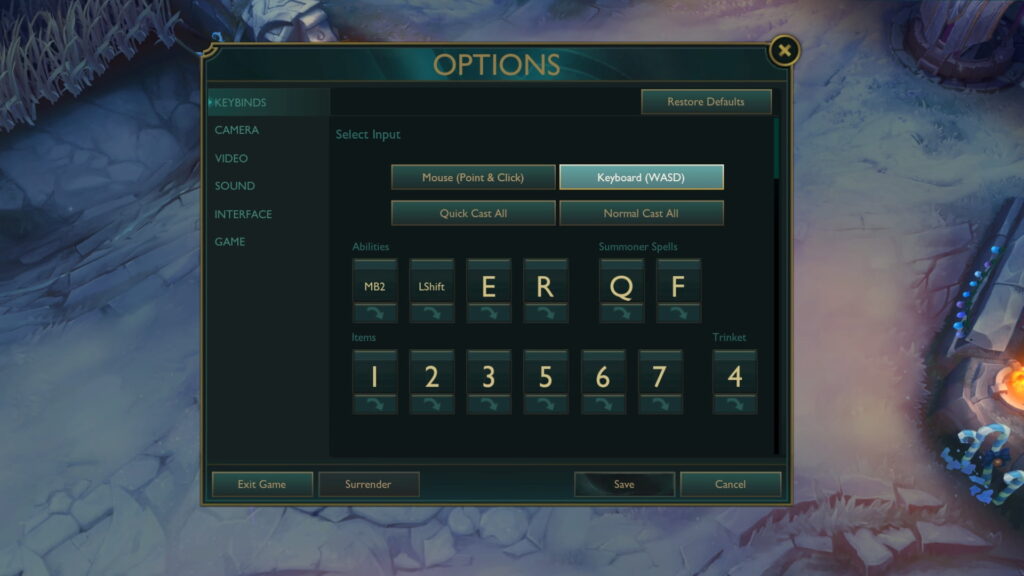
Where To Find WASD Settings In The Menu
For most players, the first hurdle is figuring out how to find WASD settings in League of Legends. The toggle only appears once you’re in an active match or tool, and you won’t see this option in the main client or pre-game lobby. If you can’t see it, double-check that your client is up to date and that you are in an eligible queue.
How WASD Movement Works In League of Legends?
At a basic level, the way WASD works in LoL is simple: WASD moves your champion up, down, left, and right, while the mouse handles targeting. When you toggle the WASD control scheme, the client also enables Dynamic Camera, which keeps the champion centered and follows movement.
You can also use the Scout Ahead function to move the camera with the middle-mouse click. Since the League of Legends maps are naturally angled, Riot also included an option to adjust the movement keys to match the map rotation.
Keybinding Setup For WASD Movement In LoL
When you swap to Keyboard (WASD), Riot gives you a working layout for movement settings where MB2, Shift, E, and R handle your main abilities, Q and F become summoner spells, and C cancels casts.
From there, you can adjust what keys to rebind for WASD movement in LoL, based on comfort — some players prefer moving abilities back to QWER, others may want to keep them closer to the mouse hand.
Which Queues Support WASD Controls In League Of Legends?
Right now, LoL WASD is live in the Tutorial and Practice Tool, plus a limited set of unranked modes. When the setting does appear in your client, it won’t be in every queue right away. For now, Riot is limiting the feature to the following modes:
- Swiftplay
- Customs
- ARAM
- Limited game modes (Arena, ARAM: Mayhem, ARURF)
WASD vs Traditional Mouse Movement In LoL
If you’re still deciding between the two movement options, understanding WASD controls in LoL means seeing both pros and cons: WASD feels familiar to shooter or MMO players, and can be easier in some hands. Ultimately, it was introduced as an alternative, not a replacement.
| Feature | WASD Movement (Keyboard) | Mouse (Point & Click) |
|---|---|---|
| Input style | Keys move the champion, and the mouse is used for targeting | Mouse sets the path and movement |
| Accessibility | Familiar to FPS/MMO players | Familiar to long-time MOBA players |
| Precision & kiting | Strong close-range dodging and strafing | Strong long-path clicking and orb-walking |
| Best use case | New or returning players, casual queues | Ranked play and existing high-level players |
FAQs
How do I activate WASD movement in League of Legends?
To activate WASD movement in LoL, launch any supported game mode, press the Esc key, and go to Keybinds. From there, simply switch the input from Point & Click to Keyboard (WASD).
What should I do if WASD controls don’t appear in my settings?
If you can’t see WASD controls in your game client, check that you’re on LoL Patch 25.24+. While you’re at it, make sure you’re not in Ranked or Normal Draft, as these modes do not currently support WASD movement.
How does WASD work in LoL compared to mouse movement?
You can think of WASD movement in LoL as keyboard movement, with the mouse primarily used for aiming and controlling the camera. Meanwhile, classic controls keep movement tied to right-click pathing.
Which League of Legends game modes allow WASD controls?
Currently, WASD is supported in most unranked modes in LoL, such as Tutorial, Practice Tool, Customs, Swiftplay, ARAM, and rotating fun queues.
Can I switch back to mouse movement if I don’t like WASD?
Yes. You can instantly revert by changing the input back to Point & Click, so LoL WASD never locks you in if it doesn’t feel right.