Fortnite Aim Assist Settings (2026): Best Options For Controller Players

- The best Fortnite aim assist settings improve close-range duels, building speed, and consistency across all game modes.
- Sensitivity, dead zones, and trigger release values should be tuned carefully to balance responsiveness with control and avoid stick drift or misinputs.
- Advanced aim assist options should stay at 100% strength, with only gradual tweaks recommended to match your personal playstyle.
To land those all-important Victory Royales, you’ll need to have the best Fortnite aim assist settings on controller to outplay your opponents across every game mode. The right setup can make all the difference between losing close-range duels and winning them cleanly.
If you’re a controller player, we have the best Fortnite assist settings for you. While settings like sensitivity and dead zones are a matter of personal preference, we’ll offer a core setup that serves as a reliable starting point.
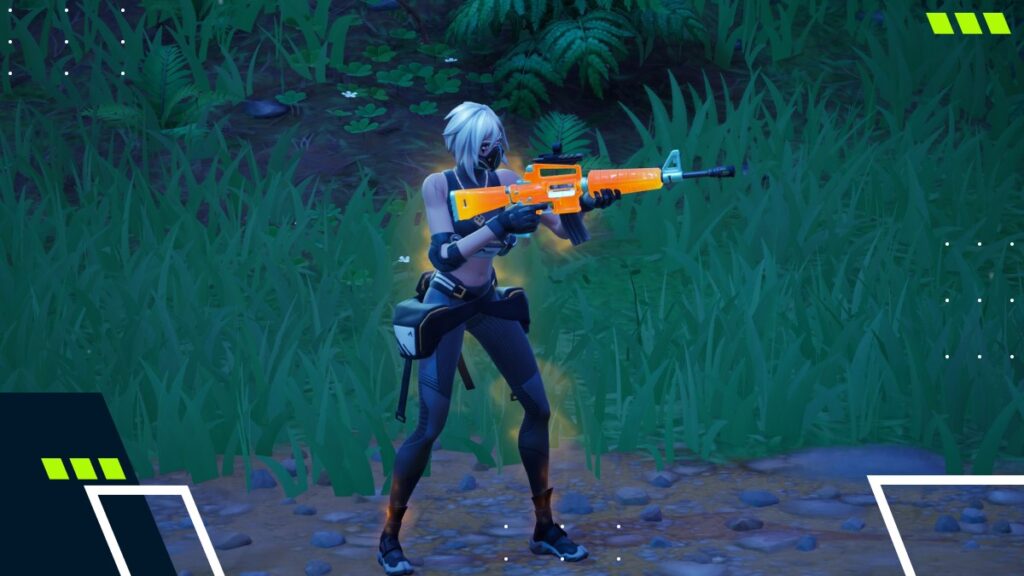
How To Adjust Aim Assist In Fortnite
To answer the question of where is aim assist in Fortnite settings, go to the main lobby and select your character icon in the top-right corner of the screen. This opens the social page and friends list. From there, select the cog wheel icon to access the in-game settings menu.
Once you’re inside, click on the controller icon to view the settings related to your gamepad. This section contains all the Fortnite aim assist settings for your input device.
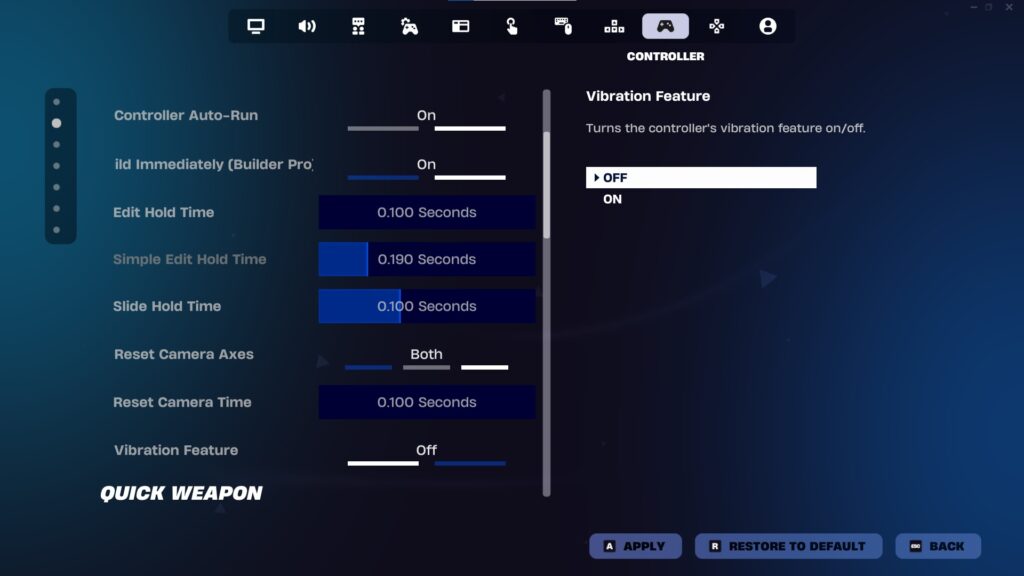
Best Fortnite Aim Assist Settings On Controller
Here are the best Fortnite aim assist settings for Xbox Series X and PS5 controller users, as well as for those on older-generation hardware.
| Input | Setting |
|---|---|
| Controller Auto-Run | On |
| Build Immediately (Builder Pro) | On |
| Edit Hold Time | $0 |
| Slide Hold Time | $0 |
| Reset Camera Axes | Both |
| Reset Camera Time | $0 |
| Vibration Feature | Off |
Having Controller Auto-Run enabled is a vital Fortnite aim assist setting for controller players. Simply pressing down the left stick twice lets you automatically run forward without holding it, freeing up your hand to use other controls while staying ready to react to gunfire.
Feeling like you have Fortnite aimbot settings goes beyond weaponry. Builder Pro enables more intuitive building by mapping builds, reducing build time by allowing you to select and place the piece you want instantly.
With that in mind, you’ll want to edit your builds quickly during build fights. Setting the Edit Hold Time to 0.100 reduces how long you need to hold the keybind to enter Build Mode in Fortnite, though adjusting this Fortnite aim assist setting requires Simple Edit to be disabled.
Similarly, lowering the Slide Hold Time to 0.100 reduces the delay between moving your joystick and your character sliding on screen, improving movement speed and responsiveness—making it one of the best Fortnite aim assist settings to adjust.
Fortnite Controller Sensitivity Settings
| Sensitivity | Setting |
|---|---|
| Look Sensitivity | 6 (Normal++) |
| Aim Sensitivity (ADS) | 6 (Normal++) |
| Build Mode Sensitivity Multiplier | 2.2x |
| Edit Mode Sensitivity Multiplier | 2.3x |
| First Person Mode | 1.0x |
Like many Fortnite aim assist settings, controller sensitivity is partly a matter of personal preference. However, we opted for a Look Sensitivity and ADS Sensitivity of 6, as you can reliably and quickly rotate your view without it feeling too rushed to handle.
Equipping higher Build Mode and Edit Mode Sensitivity Multipliers lets you perform those actions faster, but multipliers of 2.2x and 2.3x in their respective categories provide a swift yet strong middle ground for building pacing.
Deadzone Settings
| Controller Deadzone | Setting |
|---|---|
| Left Stick Deadzone | 6% |
| Right Stick Deadzone | 8% |
| Left Trigger Release | $20 |
| Right Trigger Release | $20 |
We recommend testing different Fortnite aim assist settings for your controller’s dead zones to find the lowest setting that maintains high responsiveness without causing stick drift.
The Trigger Release settings allow you to lower the threshold needed to aim with the left trigger and fire with the right trigger repeatedly, without fully releasing them, noticeably speeding up your actions.
However, setting the number too low can increase the risk of accidental inputs, which is why a value of 20 strikes a healthy balance between responsiveness and control for this Fortnite aim assist setting.
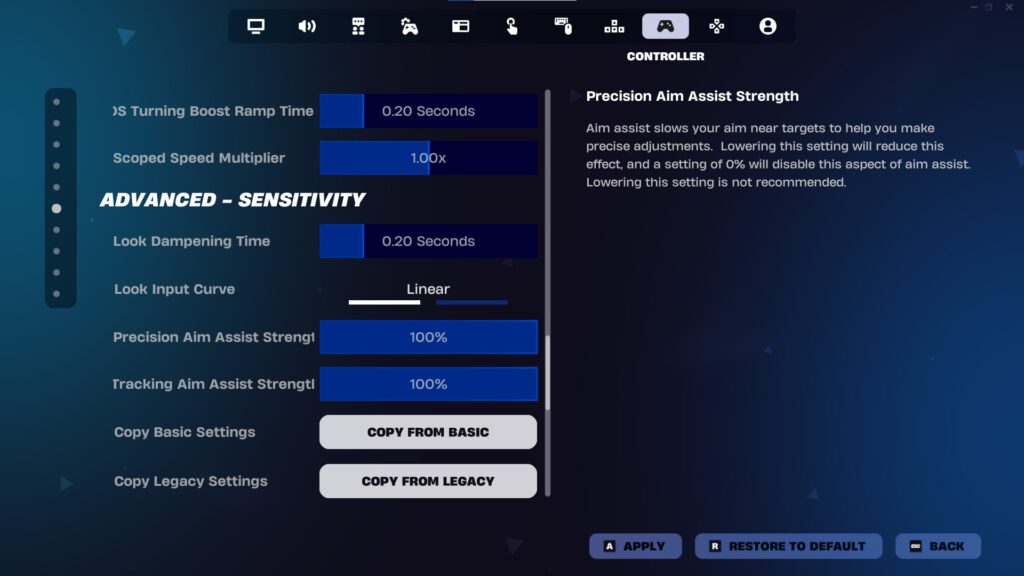
What Are Fortnite Aim Assist Advanced Options?
The Fortnite aim assist advanced options are extra features exclusive to controllers and enable finer tuning, providing far more personalization for Look Sensitivity, Aim Down Sight Sensitivity, and Aim Assist Strength.
The Fortnite 100 aim assist settings can be found here, but aim assist is enabled on a controller by default. Having your Precision Aim Assist Strength and Tracking Aim Assist Strength set to 100% means you have the maximum possible aim assist—and you shouldn’t change it.
If you want to tailor the advanced Fortnite aim assist settings to your playstyle, it’s recommended that you do so gradually and test them out in a private lobby until you find your desired combination.
Additionally, you can choose the Copy From Basic option, found under the Advanced Sensitivity section, to reset the advanced settings to coincide with the regular Look Sensitivity and ADS Sensitivity aim assist Fortnite settings detailed above.
FAQs
Do Fortnite pros use aim assist?
Absolutely. Many professional Fortnite players who use a controller do use aim assist in a competitive environment.
Is 100% aim assist good in Fortnite?
Yes. Having your Precision Aim Assist Strength and Tracking Aim Assist Strength set to 100% is the strongest aim assist in Fortnite.
Should I turn off aim assist in Fortnite?
No, you shouldn’t turn off aim assist in Fortnite. Doing this will put you at a considerable disadvantage against keyboard and mouse players, as well as other controller players who are using aim assist.
How do I turn on full aim assist in Fortnite?
Full aim assist should be enabled in Fortnite by default, but you can check this in the advanced options of the controller settings menu.
How do I fix HUD or aim assist issues in Fortnite?
If you’re having issues with the Fortnite HUD, go to the game settings, select the Game UI tab, and scroll down to the HUD section to customize it. As for an aim assist fix, you can verify that it’s enabled and set to 100% via the advanced settings of the controller settings menu.